Visual Studio 2026 and UE 5.7
This article looks at problems and fixes using the new Visual Studio 2026.
Generating new project files
If you right-click a .uproject file and select "Generate Visual Studio Projects" it will create new project files for Visual Studio.
Alternatively, you can do the same thing from the command line using a command like this (adjust for your project name and your path to Unreal):
"c:\EpicGames\UE_5.7\Engine\Binaries\DotNET\UnrealBuildTool\UnrealBuildTool.exe" -mode=GenerateProjectFiles -project=%cd%\PROJECTNAME.uproject -game -rocket -progress
Running it from the command line shows you the output and is simpler than finding and parsing the log file.
You want to make sure that the project files are for Visual Studio 2026 and not Visual Studio 2022.
This command will filter the output of generating project files:
"c:\EpicGames\UE_5.7\Engine\Binaries\DotNET\UnrealBuildTool\UnrealBuildTool.exe" -mode=GenerateProjectFiles -project=%cd%\PROJECTNAME.uproject -game -rocket -progress | findstr Generating
The filter output will be something like this:
Generating VisualStudio2022 project files:
If it shows 2022 and not 2206 you need to change it. This can be done by running the Unreal Editor (for this or any other project) and using the Edit | Editor Preferences option to change the Source Code Editor:
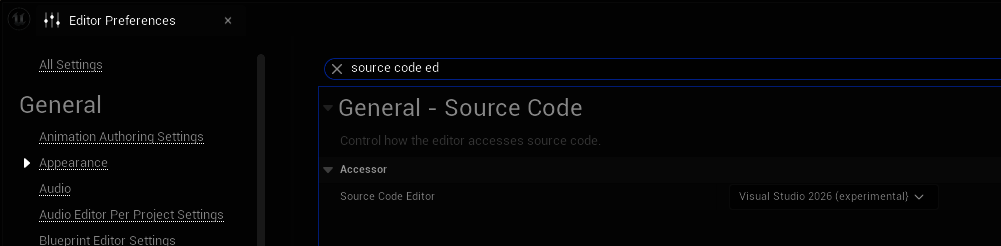
Alternatively, you can manually configure the editor by finding where the editor preferences are stored and editing the file. On my system it is in this file:
c:/users/USERNAME/AppData/Local/UnrealEngine/5.7/Saved/Config/WindowsEditor/EditorSettings.ini
You want to see this in the EditorSettings.ini:
[/Script/SourceCodeAccess.SourceCodeAccessSettings]
PreferredAccessor=VisualStudio2022
If the section is not there, add the two lines above, if it is there change the PreferredAccessor property to this:
PreferredAccessor=VisualStudio2026
Once you have changed this rerun the project file generation. You should see this:
Generating VisualStudio2026 project files:
Projects named with "(Visual Studio 2022)"
If you see project names like this:
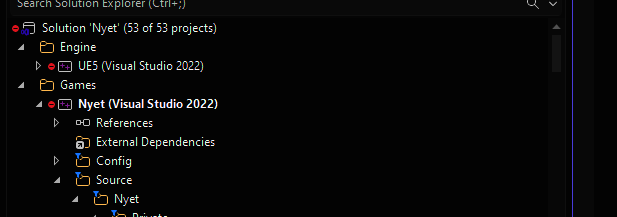
You are running projects generated for Visual Studio 2022 and you need to regenerate them for 2026 as described above
Error messages about toolchains
Messages like this:
 Available x64 toolchains (1):
1>   * C:\Program Files\Microsoft Visual Studio\2022\Professional\VC\Tools\MSVC\14.38.33130
1>      (Family=14.38.33130, FamilyRank=1, Version=14.38.33145, HostArchitecture=x64, ReleaseChannel=Latest, Architecture=x64)
1>  Unavailable x64 toolchains (5):
1>   * C:\Program Files\Microsoft Visual Studio\2022\Professional\VC\Tools\MSVC\14.43.34808
1>      (Family=14.43.34808, FamilyRank=1, Version=14.43.34810, HostArchitecture=x64, ReleaseChannel=Latest, Architecture=x64, Error="UnrealBuildTool has banned the MSVC 14.40.0-14.43.99999 toolchains due to compiler issues. Please install a different toolchain such as 14.44.35207 by opening the generated solution and installing recommended components or from the Visual Studio installer.")
1>   * C:\Program Files\Microsoft Visual Studio\2022\Professional\VC\Tools\MSVC\14.37.32822
1>      (Family=14.37.32822, FamilyRank=1, Version=14.37.32826, HostArchitecture=x64, ReleaseChannel=Latest, Architecture=x64, Error="UnrealBuildTool requires at minimum the MSVC 14.38.33130 toolchain. Please install a later toolchain such as 14.44.35207 from the Visual Studio installer.")
1>   * C:\Program Files\Microsoft Visual Studio\2022\Professional\VC\Tools\MSVC\14.36.32532
1>      (Family=14.36.32532, FamilyRank=1, Version=14.36.32548, HostArchitecture=x64, ReleaseChannel=Latest, Architecture=x64, Error="UnrealBuildTool requires at minimum the MSVC 14.38.33130 toolchain. Please install a later toolchain such as 14.44.35207 from the Visual Studio installer.")
1>   * C:\Program Files\Microsoft Visual Studio\2022\Professional\VC\Tools\MSVC\14.34.31933
1>      (Family=14.34.31933, FamilyRank=1, Version=14.34.31948, HostArchitecture=x64, ReleaseChannel=Latest, Architecture=x64, Error="UnrealBuildTool requires at minimum the MSVC 14.38.33130 toolchain. Please install a later toolchain such as 14.44.35207 from the Visual Studio installer.")
1>   * C:\Program Files\Microsoft Visual Studio\2022\Professional\VC\Tools\MSVC\14.33.31629
1>      (Family=14.33.31629, FamilyRank=1, Version=14.33.31631, HostArchitecture=x64, ReleaseChannel=Latest, Architecture=x64, Error="UnrealBuildTool requires at minimum the MSVC 14.38.33130 toolchain. Please install a later toolchain such as 14.44.35207 from the Visual Studio installer.")
1>  Visual Studio 2022 compiler version 14.38.33145 is not a preferred version. Please use the latest preferred version 14.44.35207
Indicate you might be building project files generated for Visual Studio 2022, and you need to regenerate them for 2026 as described above
Errors in Old Game Templates
Some of the files which are part of game templates such as the C++ First Person Shooter game will not compile with Visual Studio 2025.
One such error is this:
0>ShooterStateTreeUtility.cpp(300,85): Error C2280 : 'T *TStateTreeStrongExecutionContext<true>::GetInstanceDataPtr<FStateTreeSenseEnemiesTask::FInstanceDataType>(void) const &&': attempting to reference a deleted function
0>  with
0>  [
0>  T=FStateTreeSenseEnemiesTask::FInstanceDataType
0>  ]
0>FInstanceDataType* LambdaInstanceData = WeakContext.MakeStrongExecutionContext().GetInstanceDataPtr<FInstanceDataType>();
0>                                                                                                ^
0>StateTreeAsyncExecutionContext.h(166,53): Reference  : see declaration of 'TStateTreeStrongExecutionContext<true>::GetInstanceDataPtr'
0>    std::conditional_t<bWithWriteAccess, T*, const T*> GetInstanceDataPtr() const&& = delete;
0>                                                       ^
The solution is to create a new game project with UE 5.7 and copy whatever modifications or new files you created from the old project to the new one. The code in the template generated by UE 5.7 does not have the same problems.